
01
Open the scanned PDF
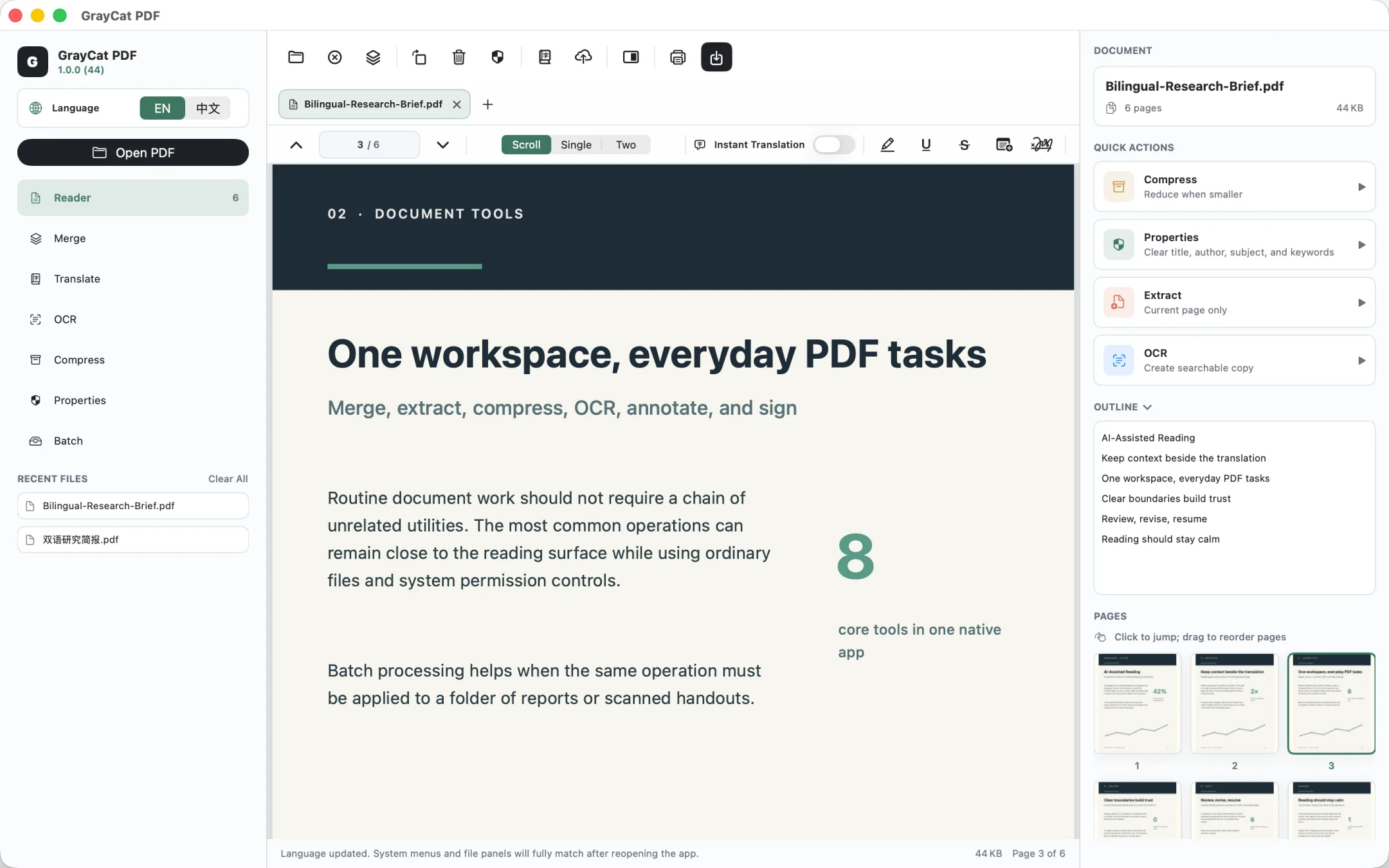
Open the file, then choose OCR in the sidebar or use the OCR quick action in the document inspector.
GrayCat PDF guide · macOS
GrayCat PDF recognizes scanned pages locally and saves a separate PDF with a text layer for search, copying, export, or translation.
OCR runs on your Mac. The result is a separate file; the source PDF is not modified.
Inside the app
After opening a PDF, start from OCR in the sidebar or the OCR quick action in the document inspector.
Steps
01
Open the file, then choose OCR in the sidebar or use the OCR quick action in the document inspector.
02
The app explains how the output copy will differ. Continue, then choose a name and save location for the new PDF.
03
GrayCat PDF processes the document page by page and shows progress. Pages that already have a usable text layer do not receive a duplicate OCR layer.
04
Open the new file for full-text search, copying, text export, or translation. The source PDF remains where it was.
OCR saves a separate PDF and does not overwrite or modify the original.
Text becomes searchable in the new copy, but forms, links, and bookmarks from the source PDF are not retained. Keep the original when you need those interactive elements.
The OCR output does not keep the source file's password protection. Save it in a secure location and, if needed, protect the new file again with Tools → Set Password. The original password is unchanged.
OCR does not send the PDF or recognized text to a GrayCat server. The app does not require a GrayCat account.
After recognition, follow the side-by-side translation guide to translate scanned content. For other questions, visit GrayCat PDF support.