
01
Open the document
Open a PDF that contains extractable text, then choose Translate in the sidebar. For image-only pages, create a searchable copy first with the OCR guide.
GrayCat PDF guide · macOS
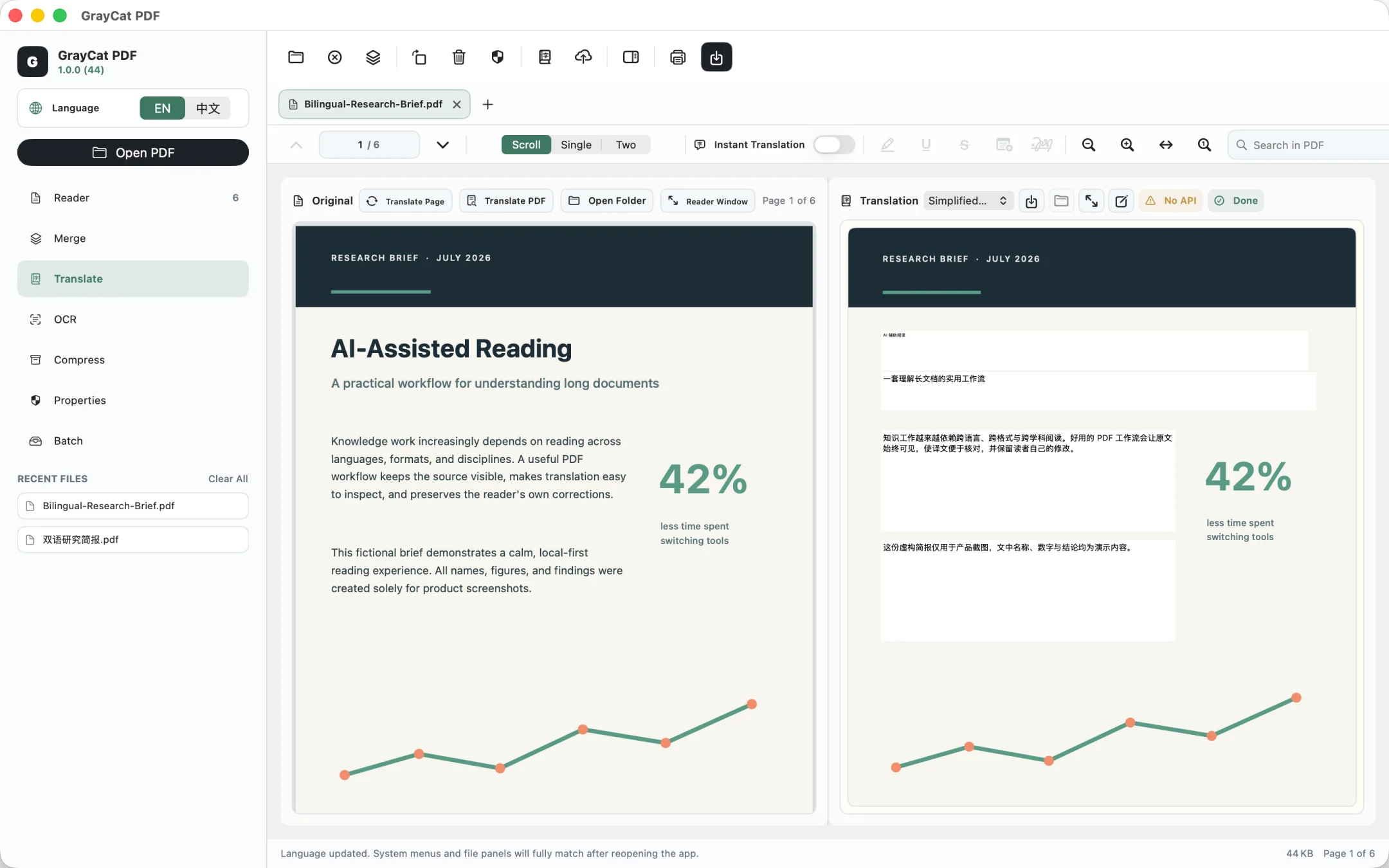
Keep the source page on the left and its translation on the right. Translate one page or the whole document, edit the result, and save a side-by-side PDF.
Requires macOS 14.0 or later. Apple on-device translation requires macOS 15 or later. Scanned pages need OCR first.
Inside the app
Both sides move to the same page as you read. You can inspect and edit the translation without changing the source PDF.
Steps
01
Open a PDF that contains extractable text, then choose Translate in the sidebar. For image-only pages, create a searchable copy first with the OCR guide.
02
In Settings, choose Apple on-device translation or configure your own AI provider, OpenAI-compatible endpoint, or local Ollama service. Hosted providers normally require an API key.
03
Select the target language. Use Translate Page for what you are reading now, or Translate PDF to process the document in page order.
04
Edit the translation paragraph by paragraph. Progress is saved automatically; when ready, save a new PDF with source and translated pages side by side.
Translation progress and edits are stored separately. Export creates a new side-by-side PDF.
Translation requires extractable page text. If a page contains only an image, GrayCat PDF asks you to run OCR first.
Apple system translation processes text on device. For AI translation, only after you confirm does the text of the pages you translate, plus page context, go directly to the provider or endpoint you selected. GrayCat operates no relay server. API keys stay in the system Keychain.
Progress is kept in *.graycat-translation.json next to the source file or in Application Support. It is a local plaintext file that you can delete in Settings → Privacy. Password-protected PDFs do not create this plaintext progress file.
Read the GrayCat PDF privacy policy for the complete scope, or visit support for setup help.